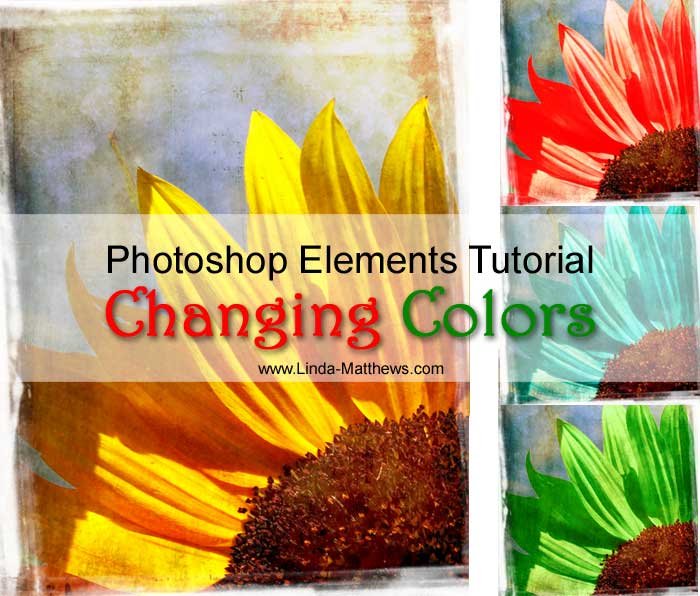
I don’t think you can improve on the colors of nature, but if you’re only a somewhat ordinary photographer like me, well it’s really quite easy to mess things up without trying too hard. You can talk to me all day long about how to use the features of my camera and I have a manual that I’ve read twenty times and I’ve even taken a class or two to learn how to take better photographs, but I seem to fail miserably every time I try to take a photo of an awesome image. All I can say is … thank you and bless you Photoshop Elements!
I often marvel at the beautiful colors of some of the photos I see and it’s extraordinarily easy to change those colors with a little patience and only a couple of clicks. Let’s take a look.
Head over to Morguefile.com and download this lovely image to play with.

1. Open the image in Photoshop Elements and select the flower petals. You can do this using the Magnetic Lasso Tool or the Quick Selection Tool, and you can zoom in close so that you can see what you’re doing.

2. Once you have all your petals selected, change the foreground color. I chose a deep purple/red.

3. Create a Solid Color Fill Layer. Click on the Create Adjustment Layer icon and select Solid Color from the drop down box.

Since we’ve already selected our color, click ok to close the dialog box.

You should now have a new layer in the Layer Pallette, and your flower should be flooded with the color you chose.

4. Now for the magic. Select Color from the Blending Mode drop down box.

And the color on your flower petals changes automatically while still retaining the lights and shades and luminosity. Isn’t that fabulous?

Don’t like the color you chose? Double click on the Solid Color Layer and change your color using the color picker on the dialog box.

Sunflowers never looked so beautiful!


Have fun!