How to make a simple and perfect fabric bead

I mentioned the other day that my next book is going to be about fabric beads which along with machine wrapped cording, is one of my all-time favorite embellishments.

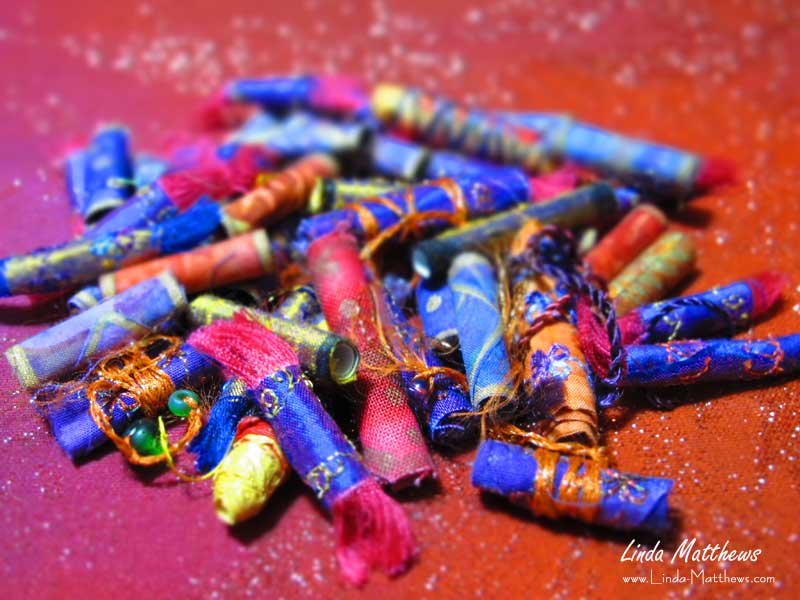
Usually I like my fabric beads kinda chunky like this …

Fabric Beads

… but every now and then I need a bead that’s perfect and plain like these.

Fabric Beads

(Shhhh, don’t tell but this is one of the embellishments my students will be making for next week’s lesson during my online embellishing class.)

There are a number of ways to get a perfectly round fabric bead, but this tip is too good to keep to myself. My secret for the quickest, simplest, most perfect round fabric bead ever ….

5-1/2''x8-3/4'' Peel n Stick Adhesive Sheets-9PK

That’s right, double-sided adhesive!

All you need to do is cut a strip of adhesive and a strip of fabric the same size. Apply the adhesive to the wrong side of the fabric, cut the bead to length, usually around 1.5 to 2 inches.

Then remove the backing on the adhesive. But not all of it! leave about 3/4 – 1″.
Tip – I scored the backing paper with the back of my seam ripper.

Fabric Beads

Then wrap the fabric around a piece of dowel.

Fabric Beads

The adhesive backing provides strong support to give the bead a perfectly round shape. How perfect and simple is that?

Fabric Beads

You can probably find double sided adhesive sheets at your local craft store.

… Continue reading

Photoshop Elements: Removing backgrounds just got easier

Remember this recent tutorial for removing backgrounds in Photoshop Elements when I showed you how to go from this

Photoshop Elements: Removing Backgrounds

to this

Photoshop Elements: Removing Backgrounds

Well that process just got a little easier.

I don’t know what I was thinking when I took this photo using my old cutting board for a background instead of my new one. (sigh) I guess I didn’t realize just how dirty and grungy it really was.

Photoshop Elements: Removing Backgrounds

So I was just about to use my favorite method of removing the background when I noticed something interesting. When you use the quick selection tool (on the left), a “refine edge” drop down box appears on the top menu.

Photoshop Elements: Removing Backgrounds

When you click it, you get an options box with the same options as I explained in my previous tutorial, but without all those steps and you can adjust the expand/contract and the feather settings right there.

Photoshop Elements: Removing Backgrounds

And after I removed the background, I replaced it with a photo of my new cutting board and my photo just improved by 200%. So yay for me for finally figuring out what was right in front of my nose all along but it’s kind of scary at how easy that was.

Photoshop Elements: Removing Backgrounds

… Continue reading

Photoshop Elements Tutorial: Cut Out Text Effect

I don’t know about you, but some photoshop elements techniques I only use once in a very long while. And of course you tend to forget how to do things after a while, memory being the way it is and all. I’ve found the best way to remember how to do things in photoshop elements, is to post the tutorial on my own blog for quick reference. Which is a bonus for you!

So enjoy today’s tutorial – a cool text effect.

Note: This tutorial is presented using Photoshop Elements 6.0, but the steps will be similar in other versions also.

Open your image in photoshop elements. I found this interesting wooden texture image at the Texture Warehouse. If you want to follow along with the tutorial, you can download it for free here.

Cut Out Text Effect

Turn this image which is currently the background image into a layer by double clicking on the image layer in the layers palette and then click OK in the dialog box.

Cut Out Text Effect

Make a new layer by clicking the Create a New Layer icon.

Cut Out Text Effect

Fill the layer with white.

Cut Out Text Effect

Using your mouse, drag the main image layer on top of the white layer.

Cut Out Text Effect

Right click the Text Tool and select Horizontal Type Mask Tool.
Select a font that is bold and chunky. I used Baveuse which you can download free from here.
Select the appropriate size for your font. I used 180px.

Cut Out Text Effect

Click on the image and you’ll notice that the background turns a reddish color.

Cut Out Text Effect

Type your word.

Cut Out Text Effect

Click the check mark …

Cut Out Text Effect

… and you’ll notice that the text becomes outlined in marching ants.

Cut Out Text Effect

Hit the Delete key on your keyboard and this deletes the letters that are outlined by the marching ants, revealing the bottom layer which we earlier filled with white.

Cut Out Text Effect

Select the Low shadow effect from the Shadow Effects Palette, or you can play around with the other types of shadows.

Cut Out Text Effect

And you can see that the shadow effect gives a cut-away effect to the lettering.

Cut Out Text Effect

Press the Esc key on your keyboard to remove the marching ants.

Cut Out Text Effect

You can play around with different types of drop shadows and bevels to create interesting text effects.

Cut Out Text Effect

Cut Out Text Effect

… Continue reading

Tutorial: Textural “Fabric Paper”

Textural Fabric PaperAs you know, fabric paper is one of my favorite materials and I use it in many different ways by printing on it using my inkjet printer when I make my art bags and three dimensional art, and also painting on it for use as backgrounds on my art quilts.

There are *lots* of different ways to make fabric paper and I generally make it because I can create interesting and unique surface texture that can then be sewn either by hand or machine. And I use various different “recipes” for making fabric paper depending on exactly what I’m going to do with it.

Since I’ve been talking about fabric paper so much lately, perhaps you’d like to try making some for yourself – it is super easy. This tutorial shows you how to make painted textural fabric paper and you can use this as backgrounds for your art quilts or cut it up and use it as fabric collage pieces.

You’ll need some muslin, tissue paper, cheesecloth, pva glue, fabric paint or acrylic paint, and a foam paintbrush. You can also add other elements into the fabric paper such as images or fabric scraps; anything that can be glued down.

Take a piece of muslin and rinse it so that it’s damp.

Textural Fabric Paper

Then make your glue mixture – a couple tablespoons of pva glue mixed with about half a cut of water. You may need to adjust this to suit your own personal needs.

Textural Fabric Paper

Then add some color; either fabric paint or acrylic craft paint. Adding the paint to the glue mixture makes it really easy to apply to the fabric.

Textural Fabric Paper

Using a foam brush, slop on the glue/paint mixture so that the muslin is saturated.

Textural Fabric Paper

Next add some tissue paper. Tear it into strips and scrunch it up, then using the flat side of the foam brush, mash it onto the top of the muslin. Use extra glue/paint if necessary to flatten it down.

Textural Fabric Paper

Cut some strips or bits of cheesecloth and mash them onto the top of the tissue paper in the same way.

Textural Fabric Paper

You can now add bits of extra color for contrast if you like.

Textural Fabric Paper

Now go away and leave it alone until it dries. Since it’s a big sloppy mess, this might take a little while. I usually leave it overnight.

Once it dries, the fabric paper is quite stiff but handling it softens it up. And of course they are fully stitchable. Have fun!

Textural Fabric Paper

Textural Fabric Paper

Textural Fabric Paper

Textural Fabric Paper

… Continue reading

Embellishing with Machine Wrapped Cording

Today I’ll be teaching one of my embellishing workshops and one of the techniques I’ll be teaching is my absolutely favorite embellishment of all time – machine wrapped cording. I’ve taught this technique to hundreds of students over the years and I use this embellishment myself for all sorts of projects and applications.

To finish the edges on my art bags …

Art Bag

… as wrap-around ties …

Fabric Journal

… and of course as embellishment on my art quilts.

Art Quilt

If you’d like to try this technique yourself, you’ll find the tutorials here

And don’t forget, dozens of “titivating” ideas for embellishing can be found on my Titivations DVD. Check the store for details.

… Continue reading