This weekend I found an extra hour to play around with some more mixed media. Now that I seem to have got the hang of it, I can’t seem to stop myself!
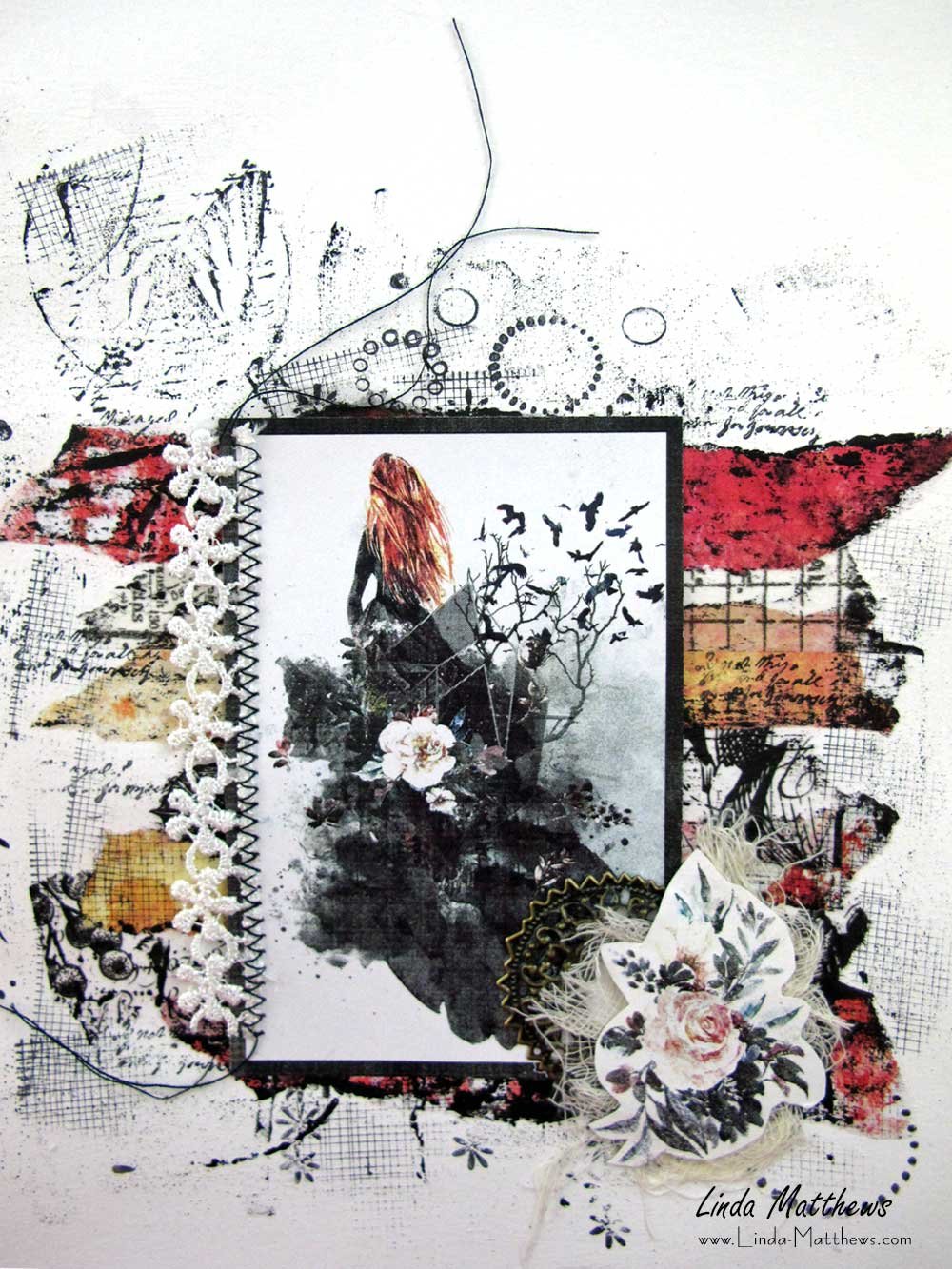
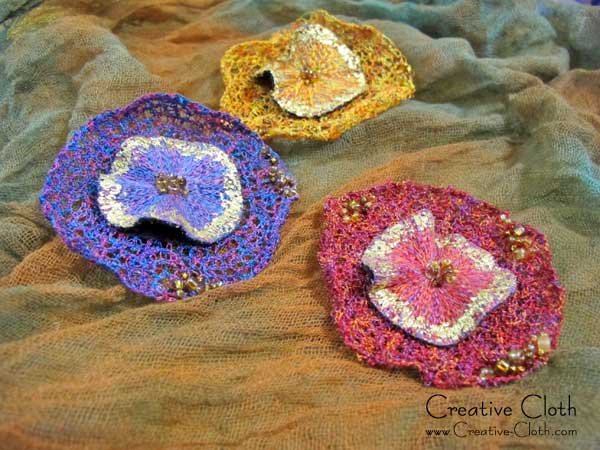
Like the previous pieces that you can see here and here, this piece was also made using a combination of different pastes and gels, paints and inks, and stamps and stencils. The colors and textures turned out amazing.

After I scanned and saved the original, I painted on some more red to tone down the green.

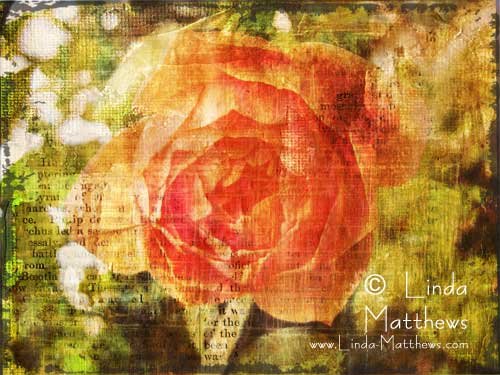
Which then made it an ideal background for overlaying images using photoshop elements.

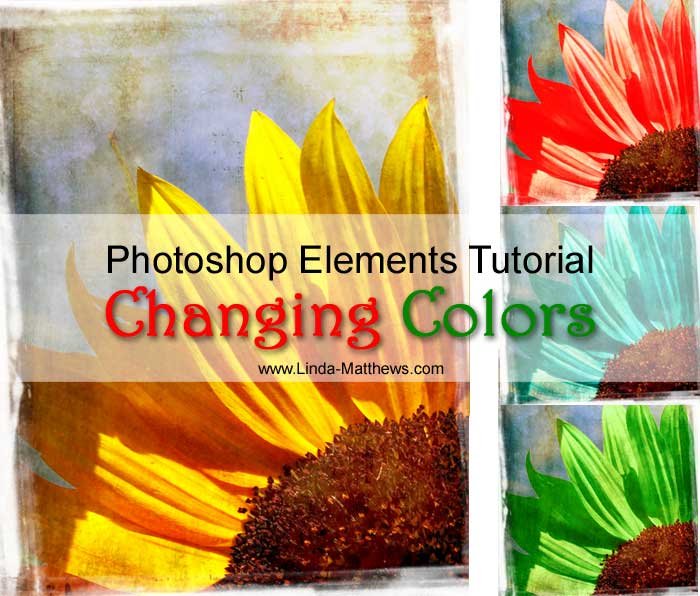
And because several of you have asked about the way I change the background color, here’s a very quick tutorial.
There are several ways in photoshop elements to change the background color, but the quickest way is to use the hue slider.
From the photoshop elements main menu, select
Enhance
Adjust Color
Adjust Hue Saturation
Note: This might be different depending on your version of photoshop elements.
Or just use the keyboard shortcut “ctrl U”

Then simply adjust the hue slider and you can see the background changing color.

And you get all these amazing colors.


Don’t you just love photoshop elements?